

Most lead leakage is not a traffic problem. It is a handoff problem: a form fills at 7:40 PM, the notification email sits unread, and by the time a rep calls the next morning the prospect has booked with whoever answered first. GoHighLevel workflow automation closes that gap by texting the lead, assigning an owner and alerting that owner within seconds of the trigger, then escalating if nobody acts.
This guide walks through a complete GoHighLevel workflow automation build for speed to lead: the trigger, the workflow settings that prevent duplicate or after-hours texts, round-robin assignment, a separate missed call text back workflow, wait steps with If Else branching, and a Goal Event that pulls booked contacts out of the sequence. Every action name below matches the labels in HighLevel’s own help documentation as of October 2026.
What GoHighLevel Workflow Automation Does for Speed to Lead
GoHighLevel workflow automation is a trigger-and-action engine inside each sub-account. A trigger such as Form Submitted enrolls a contact, and actions such as Send SMS, Assign to User and Send Internal Notification run in order. For speed to lead, it replaces a person watching an inbox with a sequence that responds in seconds, around the clock.
For speed to lead, the design goal of GoHighLevel workflow automation is simple: every new lead gets a human-sounding text immediately and a named owner who is alerted on their phone, and a manager hears about it if that owner has not acted within five minutes. Five minutes is an operating target: short enough that the lead is still on their phone, long enough for a rep to finish a call.
Three building blocks do most of the work in any GoHighLevel workflow automation:
- Triggers decide who enters (Form Submitted, Facebook Lead Form Submitted, Call Status and others).
- Actions do the work (Send SMS, Assign to User, Create/Update Opportunity, Wait Step, If Else, Goal Event).
- Workflow settings control re-entry, reply handling, time zones and quiet hours for the whole workflow.
The 5-Minute Speed-to-Lead Sequence at a Glance
In GoHighLevel workflow automation terms, the full sequence is two workflows. The main workflow handles web and ad leads from the first second to booked appointment. A second, smaller workflow handles inbound calls that nobody answered. Splitting them keeps each trigger clean and the execution logs readable.
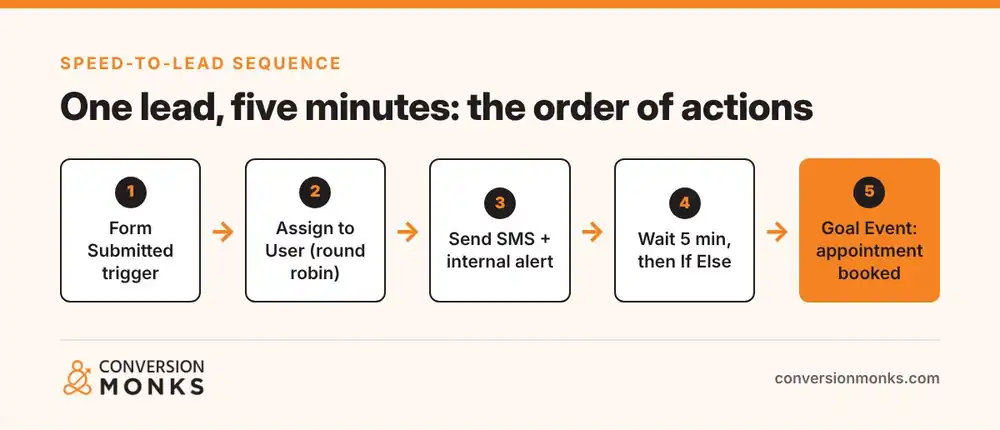
| Time | Action (exact label) | Purpose |
|---|---|---|
| 0:00 | Trigger: Form Submitted (filter Form Is) | Enroll only leads from the forms you choose |
| 0:00 | Assign to User | Round-robin an owner so merge fields resolve |
| 0:01 | Create/Update Opportunity | Drop the lead into the New Lead stage |
| 0:01 | Send SMS | First touch from the owner’s number |
| 0:01 | Send Internal Notification | Push and SMS alert to the assigned user |
| 0:01 to 5:00 | Wait Step | Give the rep a window to call |
| 5:00 | If Else | Branch on whether the lead was worked |
| 5:00 | Send Internal Notification (manager) | Escalate unworked leads |
| Any time | Goal Event (Appointment Status) | Exit the sequence once booked |
Before You Build: Phone Numbers, A2P 10DLC, Users and Pipeline
Set up four dependencies before you start any GoHighLevel workflow automation: an SMS-capable number per rep or per location, an approved A2P 10DLC brand and campaign for US texting, user accounts for everyone in the rotation, and a pipeline with a New Lead stage. Missing any one of these produces silent failures that look like workflow bugs.
- Phone numbers: assign each rep a number (Settings > Phone Numbers) so replies route back to the right conversation.
- A2P 10DLC: US carriers filter unregistered application-to-person traffic, so register the brand and messaging campaign through HighLevel’s A2P registration flow for the sub-account before you send at volume.
- Users: confirm each rep has a user seat, a mobile number for alerts and the HighLevel mobile app installed for push notifications.
- Pipeline: create stages such as New Lead, Contacted, Appointment Set and No Show so the If Else branch has something to check.
Every form that feeds this workflow also needs a clear SMS consent statement and a privacy policy link, because the lead gets a text within seconds.
Step 1: Configure the Trigger and Workflow Settings
Create the workflow from Automation > Workflows > Create Workflow > Start from Scratch, click Add New Trigger, choose Form Submitted and set the Form Is filter to each lead form. Then open the Settings tab and configure re-entry, Stop on Response, timezone and time window before you add a single action.
For paid social, add a second trigger in the same workflow (Facebook Lead Form Submitted or LinkedIn Lead Form Submitted) so every source flows through one sequence. Settings are where most GoHighLevel workflow automation builds go wrong, so treat them as part of the build, not an afterthought.
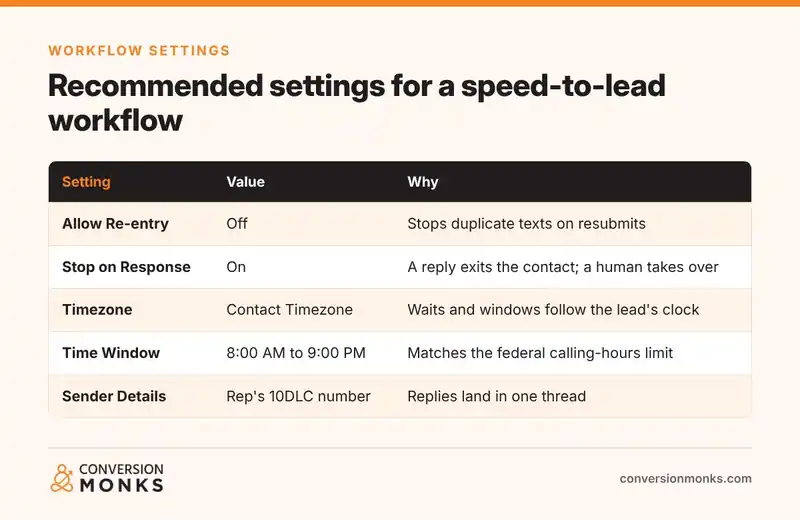
The settings that matter
- Allow Re-entry: off. Per HighLevel’s workflow settings documentation, re-entry lets a contact run the workflow again after finishing it. For lead response, a resubmitted form should alert the owner, not restart the sequence and send a second “thanks for reaching out” text.
- Stop on Response: on. When the lead replies on any channel, they exit the workflow and the conversation becomes a human job. No bot follow-up should ever talk over a live thread.
- Timezone: Contact Timezone. Wait steps and the time window then follow the lead’s local clock, falling back to the account timezone when none is set.
- Time Window: 8:00 AM to 9:00 PM. Communication actions outside the window pause until it reopens; internal actions such as tags still run. The window mirrors the calling-hours limit for telephone solicitations in 47 CFR Part 64, Subpart L of the FCC telemarketing rules.
- Sender Details: point the From number at the number your reps actually answer from, so replies stay in one conversation thread.
Step 2: Assign an Owner, Send the First SMS and Alert the Rep
In GoHighLevel workflow automation, action order matters, so put Assign to User first, before any message. Selecting several users in the Users field turns on round-robin distribution, and assigning first means merge fields such as the rep’s name and the From number resolve correctly in the very next Send SMS action. Then create the opportunity, send the text and alert the owner.
Assign to User (round robin)
According to HighLevel’s Assign User action documentation, the action has a Users field and an optional Only Apply to Unassigned Contacts toggle. Turn that toggle on. Returning customers keep their existing rep, and only net-new leads enter the rotation.
Create/Update Opportunity
Choose your sales pipeline, set the stage to New Lead, map the opportunity name to the contact’s full name and the source to the form name. This is what your If Else branch will read at minute five.
Send SMS
Keep the first text short, personal and specific to what they asked for. Identify the business, use the rep’s first name and give the lead one easy reply.
Hi {{contact.first_name}}, it's {{user.first_name}} at {{location.name}}.
Got your request about {{contact.service_interest}}. Is now a good
time for a quick call, or would later today work better?
Reply STOP to opt out.
Swap contact.service_interest for whichever custom field your form actually captures. Referencing the specific request reads as human; “we received your submission” does not.
Send Internal Notification
Send to the assigned user by SMS and in-app notification. Include the lead’s name, phone, form answers and a contact-record link so the rep can tap and call from the alert.
Step 3: Build the Missed Call Text Back Workflow
Missed call text back is a separate piece of GoHighLevel workflow automation that texts a caller automatically when an inbound call is not answered. Use the Call Status trigger, filter on incoming calls with a status of busy, not answered or voicemail, then send an SMS, alert the team and create the opportunity. It captures phone leads that would otherwise vanish.
HighLevel’s Call Status trigger documentation lists call direction values of incoming and outgoing and status values that include busy, not answered, voicemail, completed and canceled. The build:
- Trigger: Call Status, Call Direction = incoming, status = busy, not answered or voicemail.
- Action: Send SMS “Sorry we missed your call, this is {{location.name}}. How can we help? You can reply here and we’ll get right back to you.”
- Action: Assign to User with Only Apply to Unassigned Contacts on.
- Action: Send Internal Notification to the assigned user: “Missed call from {{contact.phone}}. Text-back sent.”
- Action: Add Contact Tag missed-call so you can report on volume by day and hour.
Turn on Stop on Response here too. If the caller texts back, a rep owns the thread. If you already track calls by source, pair this with your tracking which campaigns drive phone leads setup so missed calls are attributed to the right campaign instead of showing up as direct.
Step 4: Add Wait Steps, If Else Branching and a Goal Event
After the first touch, add a Wait Step of five minutes, then an If Else that checks whether the opportunity left the New Lead stage or carries a contacted tag. If not, notify the manager and send a second text. Finish with a Goal Event set to Appointment Status so booked contacts exit the sequence immediately.
The escalation branch
- Wait Step: 5 minutes. Because the timezone is set to Contact Timezone and a time window is active, an after-hours lead’s wait completes but the next SMS holds until 8:00 AM local time.
- If Else: Branch A when the pipeline stage is still New Lead and the contacted tag is absent; Branch B (None) for everything else.
- Branch A: Send Internal Notification to the sales manager (“Unworked lead, 5 minutes”), then a second Send SMS offering a booking link.
- Branch B: end, or continue to a slower nurture sequence over the next few days.
Train reps to move the opportunity to Contacted, or add the contacted tag, the moment they reach the lead. The branch is only as accurate as that habit.
The Goal Event
A Goal Event pulls a contact forward to the goal step the moment its condition is met, wherever they are in the workflow. HighLevel’s Goal Event action documentation lists goal types including Appointment Status, User Replied, Form Submitted and Contact Tag Added or Removed. For speed to lead, use Appointment Status = booked or confirmed.
Under If Contact Reaches This Goal Without Meeting Conditions, choose End this workflow. Continue anyway and Wait until the goal is met suit longer nurture sequences.
SMS Compliance Guardrails for Automated Lead Response
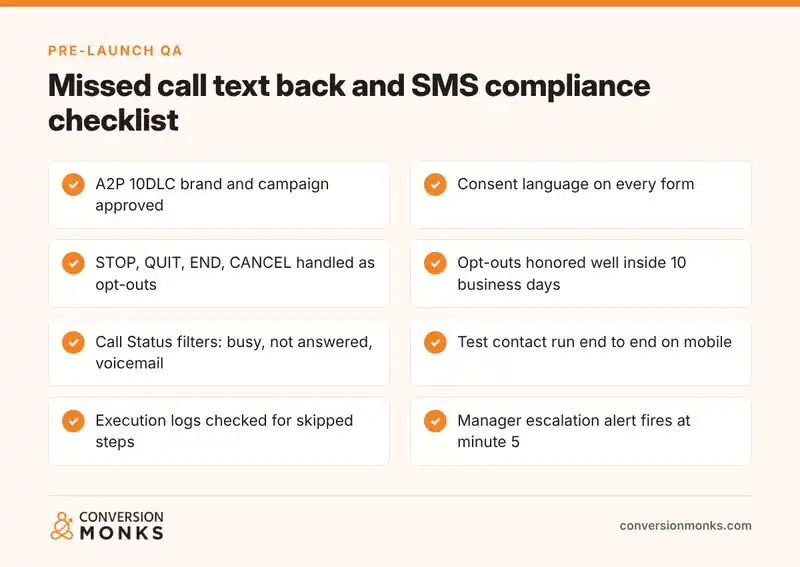
Automated texting is regulated, and GoHighLevel workflow automation makes it easy to send a lot of texts quickly. Treat consent, opt-out handling and quiet hours as part of the build: collect clear consent on every form, honor opt-out keywords such as STOP, QUIT, END and CANCEL, process revocations promptly, and keep marketing texts within reasonable local hours. Talk to counsel about your specific use case.
The FCC’s 2024 order, Strengthening the Ability of Consumers To Stop Robocalls (Federal Register, March 5, 2024), spells out several points that map directly onto workflow settings:
- Consumers can revoke consent by any reasonable means. Replies of stop, quit, end, revoke, opt out, cancel or unsubscribe are treated as reasonable by default.
- Opt-out requests must be honored within a reasonable time, not exceeding 10 business days from receipt.
- A single confirmation text with no marketing content is permitted after an opt-out, and one sent within five minutes is presumed to fall within the consumer’s prior consent.
Before launch, reply STOP from a test number and confirm the contact is marked DND for SMS in your sub-account. Never re-enroll a DND contact through a workflow, and add a DND filter to any manual bulk sends.
Test, Publish and Measure Your GoHighLevel Workflow Automation
Before publishing, run a test contact through the full path on a real phone: submit the form, confirm the SMS arrives from the rep’s number, ignore it for five minutes to fire the escalation, then book an appointment to trigger the Goal Event. Review the execution logs after each run for skipped or failed actions.
- Test the edges: a submission at 10:30 PM (should hold until 8:00 AM), a reply within the wait (should exit via Stop on Response) and a resubmission (should not re-enroll).
- Save, then Publish: a saved draft does not enroll anyone. Toggle the workflow to Publish and confirm the status.
- Measure response time: compare the form submission time with the first outbound call or SMS in Conversations for a weekly sample of leads, and track the share of leads that hit the manager escalation.
Once your GoHighLevel workflow automation runs cleanly for two weeks, the escalation rate becomes the best single health metric for your sales team’s speed to lead. A rising rate usually points to a staffing gap at specific hours.
Frequently Asked Questions
How do I create a workflow in GoHighLevel?
Go to Automation, then Workflows, and click Create Workflow. Start from scratch or from a recipe, click Add New Trigger to choose what enrolls contacts, then add actions with the plus button. Configure the Settings tab for re-entry, Stop on Response and time window, save the workflow, and switch it from Draft to Publish so it starts enrolling contacts.
What is missed call text back in GoHighLevel?
Missed call text back automatically texts anyone whose inbound call goes unanswered. In a workflow, you build it with the Call Status trigger filtered to incoming calls with a status of busy, not answered or voicemail, followed by a Send SMS action. It turns a missed call into a text conversation the caller can continue at their convenience.
What is the difference between a campaign and a workflow in GoHighLevel?
Campaigns are HighLevel’s older, linear sequence tool for timed messages. Workflows are the current automation builder and add multiple triggers, If Else branching, goal events, opportunity actions, internal notifications and workflow-level settings. New automations should be built as workflows, and any remaining campaigns are worth migrating so all logic lives in one place.
How fast should you respond to a new lead?
Respond as close to instantly as possible. An automated text in the first minute plus a human call within five minutes is a practical standard for most service businesses. The automated text confirms the request and opens a channel, while the call converts. Escalating unworked leads to a manager after five minutes keeps the standard enforceable.
Can GoHighLevel assign leads round robin?
Yes. The Assign to User workflow action distributes contacts in a rotation when you select more than one user in the Users field. Turn on Only Apply to Unassigned Contacts so returning customers keep their existing owner. Place the action before any Send SMS step so the assigned rep’s name and number populate in the message.
Does Stop on Response work for every channel?
Stop on Response removes a contact from the workflow when they reply to a message sent by that workflow, across channels such as SMS and email. For call actions, voicemail detection prevents a voicemail from counting as a reply. If you disable voicemail detection, voicemails do count as replies, so test that behavior before relying on it.
Want this sequence built and tested in your own sub-account, with A2P registration, round-robin rules and reporting wired in? Talk to the Conversion Monks marketing automation team about a GoHighLevel workflow automation build.
Written by Neha Verma, co-founder of Conversion Monks.